Generate models and read the log#
Connect an Artisan backend#
The engine indicator is at the bottom of the Project panel. A packaged
installation can discover its bundled Artisan backend. If the indicator says
Not connected, choose Backend… and select ArtisanMain.exe from
your complete Artisan package.
A source installation can instead select ArtisanMain.py. ArtGUI then
opens a Python backend dialog. Choose the Python interpreter from the
environment containing Artisan and its dependencies, or leave it empty to
use python from the system PATH. Choose Use Python backend to apply
the selection. Backend selection is remembered locally.
For the supplied engine-bracket example, the executable in Artisan_Dist
is the straightforward choice because its example paths are relative to
that folder. Backend selection and project path handling are separate from
loading a mesh into the viewer.
Before starting#
Check that the project has a valid domain, at least one operation and all required inputs. For a mesh result, include the appropriate export operation and check its output filename. Create the output folder if it does not exist. Use a new filename when you want to preserve an earlier result.
Choose Generate model. ArtGUI applies the current definition form, checks the supported setup/definition rules, and saves the project before starting the backend. Cancelling the save dialog or failing to save prevents the run.
Follow progress#
The status row below Workflow shows the current operation, engine-reported percentage and elapsed time. The active workflow card is highlighted. Show log opens the detailed messages; the log starts collapsed for each new run.
The percentage describes the engine’s operation-based progress. It can jump, pause during a long operation or spend a long time near completion. It is not an estimate of the time remaining. Elapsed time continues to update, and ArtGUI does not report 100% until the backend exits successfully.
Control |
Purpose |
|---|---|
Show log / Hide log |
Expand or collapse the resizable message area. |
Auto-scroll |
Follow new messages. Turn it off to read earlier output. |
Copy |
Copy the visible log, up to the latest 2,000 lines. |
Open log |
Open the retained full transcript in Notepad. Use it when the visible log does not reach far enough back. |
Stop |
Terminate the current Artisan process and its child processes. |
Workflow editing is locked during generation. Camera and inspection controls remain available, so you can examine an already loaded mesh while waiting.
Finish, cancel or recover#
After completion, the outcome and elapsed time remain in the status row. Failures expand the log automatically. Read the first relevant error and the preceding operation messages before changing parameters.
Stopping a run retains partial output files. An existing STL on disk might therefore be incomplete or left over from an earlier run. Check the final status and file modification time before treating it as the current result.
On success, choose Load result and select a mesh from the current workflow’s export list, or use Open another result file…. Missing files and formats without a supported preview are marked in the list. Use View field… for HDF5 outputs. If you generated to the same filename as an already loaded result, reload it; the viewer does not automatically refresh it. Hide the source or adjust opacity in the result or source geometry’s Properties → Display, or in Visibility, to inspect the lattice clearly.
ArtGUI retains a full run transcript in its application-data runs folder.
The log panel shows its path. Artisan’s own .log and .prg files use
a unique run name in the engine’s selected working directory. These are
separate from the project JSON and exported mesh.
Monitor memory and CPU#
Open Resources beside Workflow to check system usage and the separate Artisan and ArtGUI process groups. Choose a source and Memory or CPU to view the last 60 seconds. Readings update about once a second; brief peaks can be missed. These readings help explain a busy computer, not predict completion.
Displayed HDF5 fields close before generation so Artisan can write their files. Their project references remain. After the run, use View field… or select a field reference to reopen it, including after a stopped or failed run.
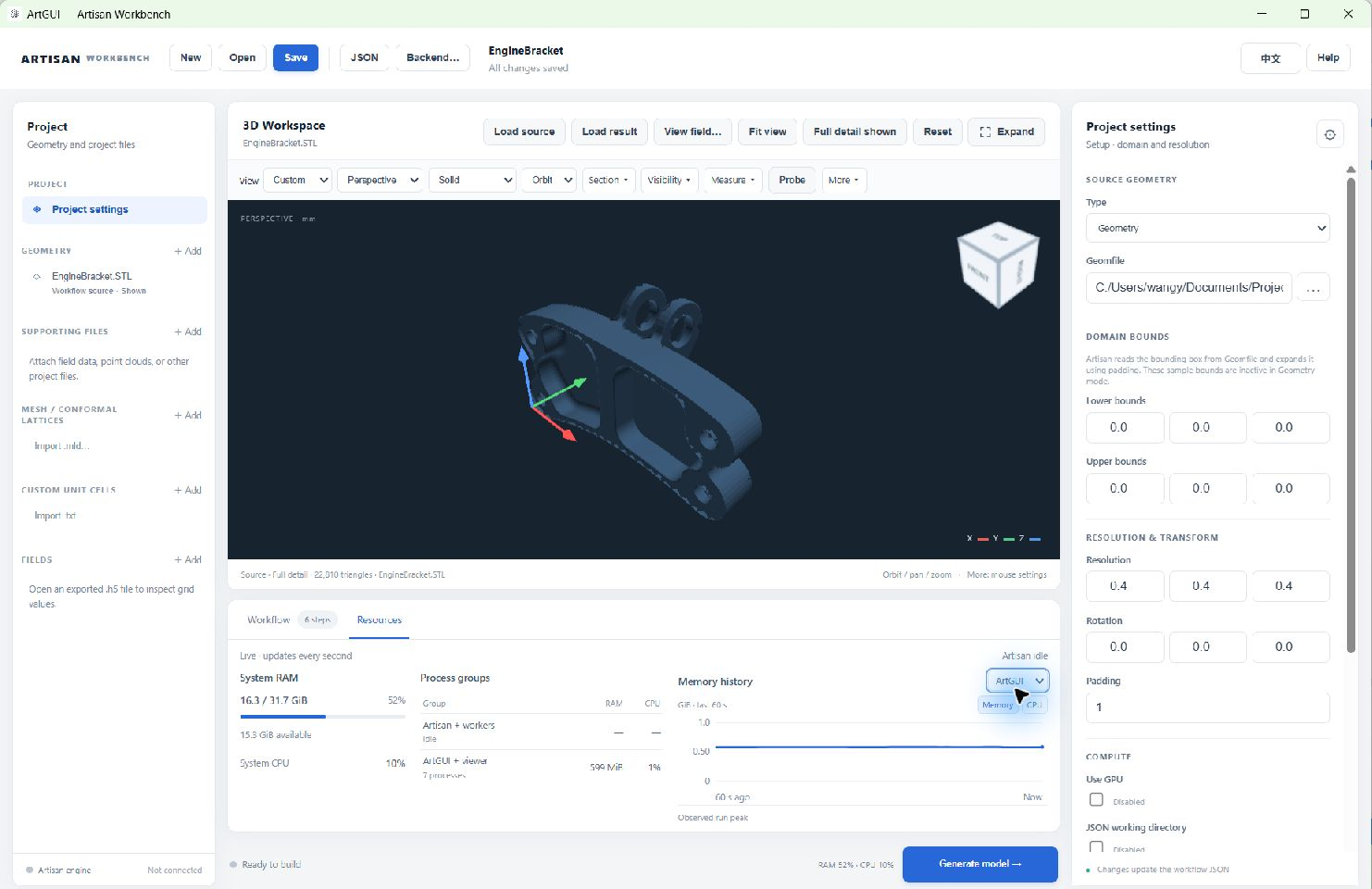
Resources separates system usage from Artisan and ArtGUI. This example shows ArtGUI memory while the backend is idle.#