Build and edit workflows#
A workflow is an ordered list of operations. Each step works with the model, fields, meshes or definitions available at that point. Changing the order can change the result or make a required input unavailable.
Add an operation#
Choose + Add step beneath the 3D Workspace.
Search by a friendly name, command keyword or purpose. For example, search for
lattice,Lin_Interpolateorexport.Select the operation and check the Insert position at the bottom of the dialog. You can insert at the start, after an existing step or at the end.
Choose Add step. The new card is selected and its parameters appear in Properties.
Replace example values and file references with values appropriate to your design. Save the project.
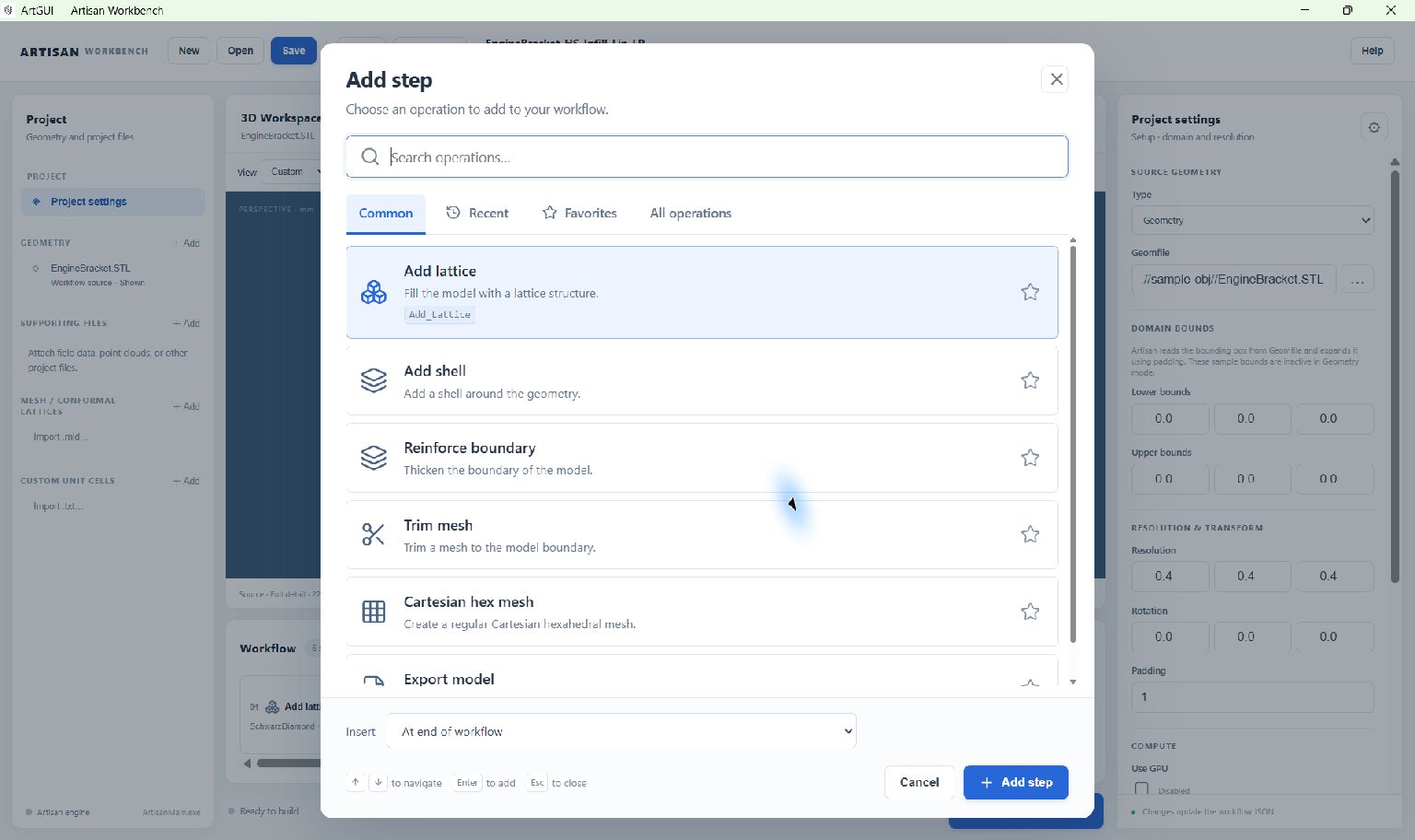
Choose an operation and its insertion point together. Adding an Export step at the end is a common final action in a modelling workflow.#
Common contains frequently used operations. Recent lists operations you have added, while Favorites contains those marked with a star. All operations provides the full catalogue and a category filter. Search looks across the catalogue rather than only the current tab, and supports English and Chinese names and descriptions as well as command keywords.
The updated catalogue includes polycube hex meshing, geometry-domain rebuilding, field inversion, geometry distance fields and mesh smoothing. Some commands use a clearly labelled starter template when no full example is available; review its inputs and preceding steps before running. Available operations must also be supported by your selected Artisan backend.
Category |
Typical purpose |
|---|---|
Geometry & shells |
Define shapes, shells and boundary features. |
Lattices & transitions |
Add lattice fields and vary or combine lattice regions. |
Volume meshing |
Create volume meshes for later operations. |
Surface meshing |
Create surface meshes. |
Mesh processing |
Trim or modify existing meshes. |
Lines & paths |
Create or manipulate line-based structures. |
Fields |
Build and combine spatial fields. |
Analysis & FEA |
Prepare meshes for analysis workflows. |
Import, export & storage |
Read, write, compress or recover workflow data. |
Edit parameters and presets#
Select a card to edit its properties. Scalars use individual fields; vectors provide separate components; nested data may appear as JSON. Keep coordinate systems and units consistent with the source geometry.
The Example preset selector replaces that operation’s parameters with another bundled example. A preset is a starting configuration, not a guarantee that it is suitable for the current geometry. Selecting a preset replaces your current values for that operation, including paths. Review the full parameter list afterwards.
For lattice operations, choose an integrated lattice, a project definition, or Other name / file… as appropriate. The name must match the intended definition. See Define and reuse lattices for creating project definitions.
ArtGUI preserves integer and floating-point values: 5 and 5.0 retain
their types through JSON editing, saving and reordering. Integer fields reject
fractional values. If a parameter genuinely needs a different numeric type,
change it explicitly in JSON and check the operation’s requirements.
Export mesh and field data#
Select Export model and choose an Output mode:
Mode |
Artisan parameters |
|---|---|
Mesh only |
|
HDF5 field only |
|
Mesh plus HDF5 field |
|
For field output, enter Grid field IDs as a JSON array, such as
["SizeField"]. These are IDs created earlier in the workflow, for example
by OP_Fit_GridField. The current lattice field is included automatically
when present; an empty list adds no named fields. Do not include lattice
in the list: that name is reserved for the current lattice field.
The resulting Export parameters for combined output are:
{"Export": {
    "outfile": "./Test_results/part.stl",
    "fieldfile": "./Test_results/part.h5",
    "GridFieldIDs": ["SizeField"]
}}
Changing to Mesh only removes fieldfile and GridFieldIDs. Changing
between field modes retains the selected IDs and adjusts the output extension.
The file buttons open Save dialogs filtered for mesh or HDF5 output. Paths
follow the workflow’s working-directory setting, just as other Artisan paths.
ArtGUI reports invalid filenames, duplicate or reserved field IDs, malformed ID arrays and incompatible output combinations before saving or generation. Artisan checks that the selected fields actually exist at the export step.
Use View exported field… in Export properties to open the existing output.
View field… in the 3D Workspace, beside Load result, is always
visible. It lists HDF5 outputs from the current JSON workflow, with the Export
step number and filename. Both HDF5-only outfile and combined-output
fieldfile paths are included. Existing files are ready to view; missing files
are marked unavailable until generated. The list is refreshed whenever the
button is clicked, so an existing output can be viewed without rerunning Artisan.
Choose Open another HDF5 file… to browse for another snapshot. With no HDF5
exports in the workflow, View field… opens the HDF5 file picker directly.
Load result uses the same chooser for mesh outfile exports from the
current JSON, including combined mesh/field Export steps. Rows show the step
number and filename. Missing files are unavailable until generated. STL, OBJ,
PLY and INP outputs can be previewed; other export formats are listed with a
preview-unavailable message. Choosing an available result loads it in the
3D Workspace and records it under Geometry. Open another result file…
opens the file picker, which also accepts HDF5 fields. With no mesh exports,
Load result opens the picker directly. Both choosers refresh on each click.
See HDF5 field snapshots for the field-file layout and readback parameters.
Inspect HDF5 fields#
Choose View field… to select a current-workflow HDF5 output or browse for
another completed Artisan .h5 / .hdf5 snapshot. Fields → Add opens
the HDF5 file picker directly. Load result → Open another result file…
also accepts HDF5 fields. Select a field in the project tree to open
its inspector. Load source/result meshes to overlay the field at its original
model position. A saved grid_to_model affine transform aligns local grids.
X / Y / Z selects the slice direction in stored grid coordinates. The position slider or number snaps to the nearest original grid plane.
Colour selects Viridis or blue/white/red and controls the range. Lock the range to compare slices; Use saved field range covers all blocks. Unlocking uses finite values in the displayed slice. NaN/infinity are gaps.
Display controls field/mesh visibility and opacity. Slice quality limits each preview edge to 128, 256 or 512 samples.
Probe in the viewport toolbar reads a nearest original grid point and reports its indices, coordinates, stored precision and value. Local grids also report model coordinates. Copy value copies the original value.
Partition block selects one exported block when there are several. Exported padding is included; this release does not merge overlapping blocks.
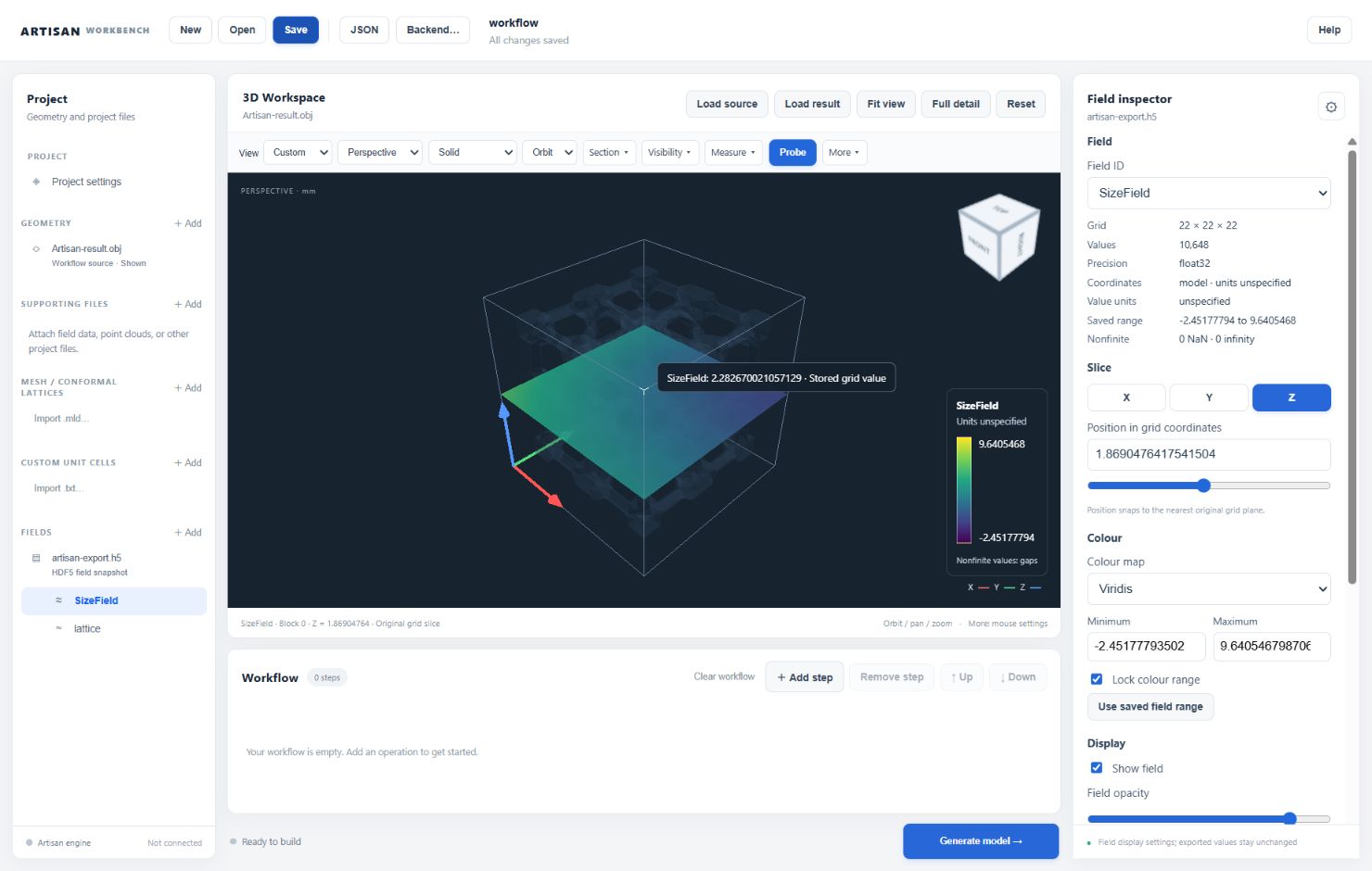
Inspect a fitted field in model coordinates and probe an original value.#
The inspector reports dimensions, precision, available units, saved finite range and nonfinite counts. Units are unspecified when absent from the file; viewer unit labels do not rescale coordinates.
ArtGUI reads metadata, one block’s compact axes and bounded strips of the requested plane. It keeps the full values in the file. Preview slices may be sampled on large grids; probes always read original values. A billion-value grid therefore does not require a billion-value browser allocation. Changing the slice cancels older requests between native reads.
This release supports completed Artisan.GridField version 1 rectilinear
snapshots, including nonuniform strictly increasing axes, with float32/float64
point values, xyz axes and C;z-fastest ordering. Each axis needs at least
two points. Axis vectors may total up to two million coordinates per block;
compressed chunks above 32 MiB are rejected. Up to eight files may be open.
Remove field file closes a file. Structured/deformed grid display,
combined partition views, isosurfaces and volume rendering need later updates.
Saving records the field-file path and selected field/block under
ArtGUI.fields. Select the saved reference after reopening to inspect it.
Slice position, palette, opacity and probe results are session settings.
ArtGUI references are omitted from the JSON sent to Artisan. New/Open and
Apply JSON close field handles and clear the display.
After saving successfully, Generate unloads displayed fields and cancels pending reads. ArtGUI waits for native HDF5 handles to close before starting Artisan so it can overwrite exported files. Fields stay closed throughout the run, including cancellation or failure. Saved references remain in the tree; select a reference or use View field… after the run to reopen the snapshot.
Windows development builds use the native Rust HDF5 reader and bundle its DLL
dependencies beside ArtGUI. npm run dev and npm run build automatically
prepare them and pass HDF5_DIR to Tauri. They detect the active Conda
environment or a standard Anaconda installation; an explicit HDF5_DIR
overrides detection. dev-windows.bat and build-windows.bat invoke those
same commands. Activating Conda alone does not set HDF5_DIR. Python is
used only by the build helper; delivered users need no Python, Anaconda or
separate HDF5 installation. Rebuild/restart ArtGUI for this update.
Reorder or remove steps#
Select a card and choose Up or Down to move it. Remove step removes the selection; Clear workflow removes all operations after confirmation. Keep a saved copy before making substantial changes.
Adding, moving and removing steps can renumber the JSON keys. Use the displayed
order to check dependencies, not gaps in the original numbering. For example,
the engine-bracket Export operation originally has key 99 but is the sixth
card.
Keep these dependencies in order:
Create or import a mesh before an operation refers to its variable name.
Create grid fields before field-driven expressions use them.
Define a custom unit cell before a conformal lattice refers to it.
Define a lattice before an operation consumes its name.
Export after the modelling operations whose result you want to write.
ArtGUI checks named lattice-definition ordering before generation. It does not prove that every possible mesh, field, file or parameter dependency is valid; the engine may report additional issues when the workflow runs.
Use the JSON editor#
Choose JSON to inspect or edit the whole project. Use double quotes for
JSON names and strings, lowercase true and false, and no trailing
commas. Choose Apply JSON to validate and apply the text, or Cancel
to close without applying the text edits.
Applying JSON replaces the in-memory workflow and clears the current viewer layers. Reload the geometry for visual inspection, then choose Save to write the project. Invalid JSON stays unapplied and a message explains the problem.
Note
Applying valid JSON only confirms that the editor can read its structure. It does not confirm that the files exist or that Artisan can execute every operation. Inspect the run log after generation.
Choose what to export#
Select an Export model card and choose Output mode:
Mesh only: write a mesh, such as STL, to
outfile.HDF5 field only: write sampled field values to an
.h5or.hdf5outfile.Mesh plus HDF5 field: write a mesh to
outfileand a field snapshot tofieldfile.
To include named grid fields, enter their existing IDs in Grid field IDs,
for example ["SizeField"]. Create those fields before Export. The current
lattice field is included automatically when present; [] adds no named fields.
Choosing Mesh only removes fieldfile and GridFieldIDs. Check output paths
after changing modes and save before generation.
Use Load result for a mesh and View field… for an HDF5 snapshot. Supported exports and previews are different: not every exported mesh format can be shown in ArtGUI. See Inspect models in the 3D Workspace.
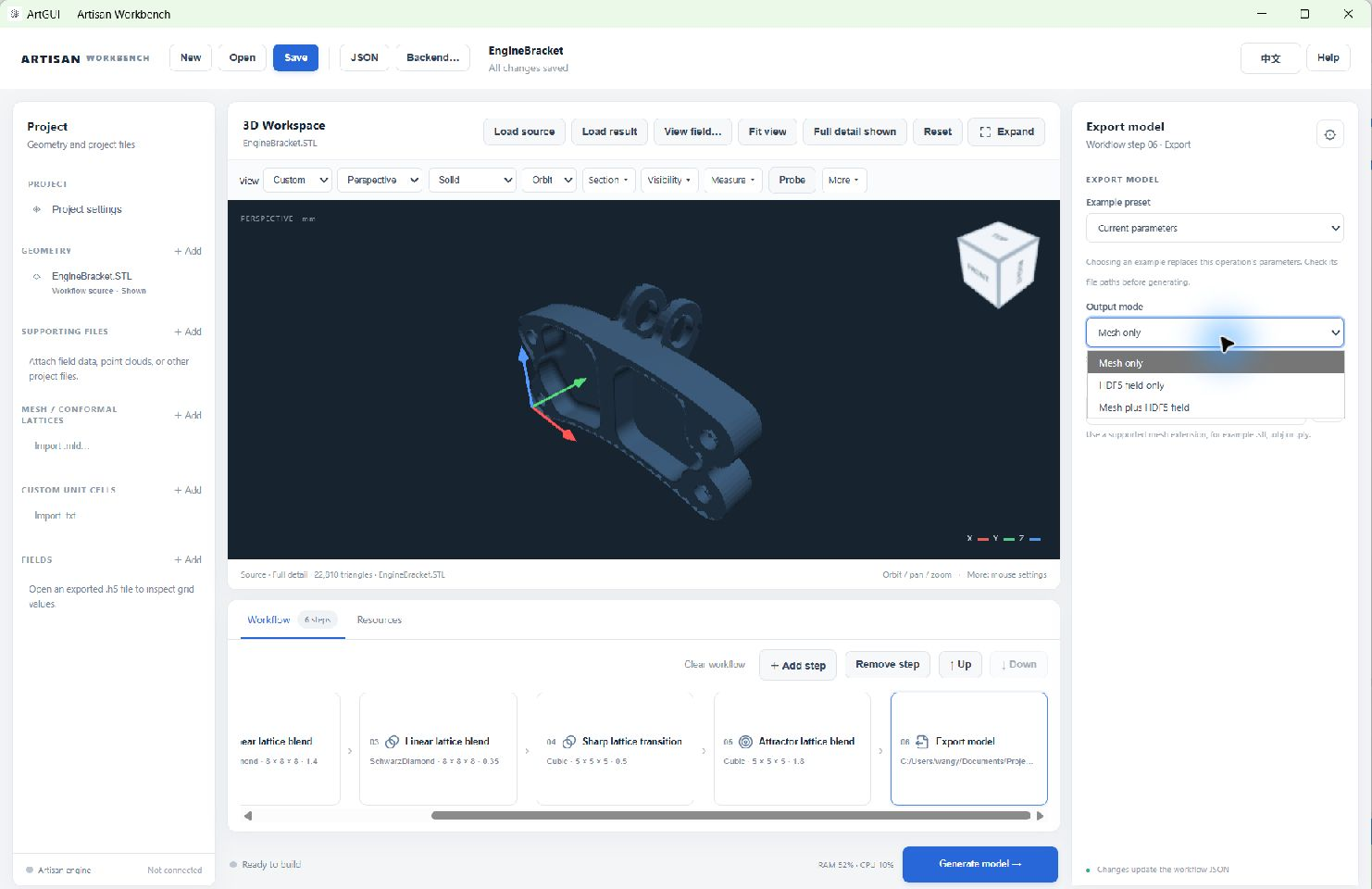
Choose the output mode on the Export card before setting the output paths.#