Find your way around#
The workbench keeps project files on the left, the model and operation sequence in the centre, and editable properties on the right.
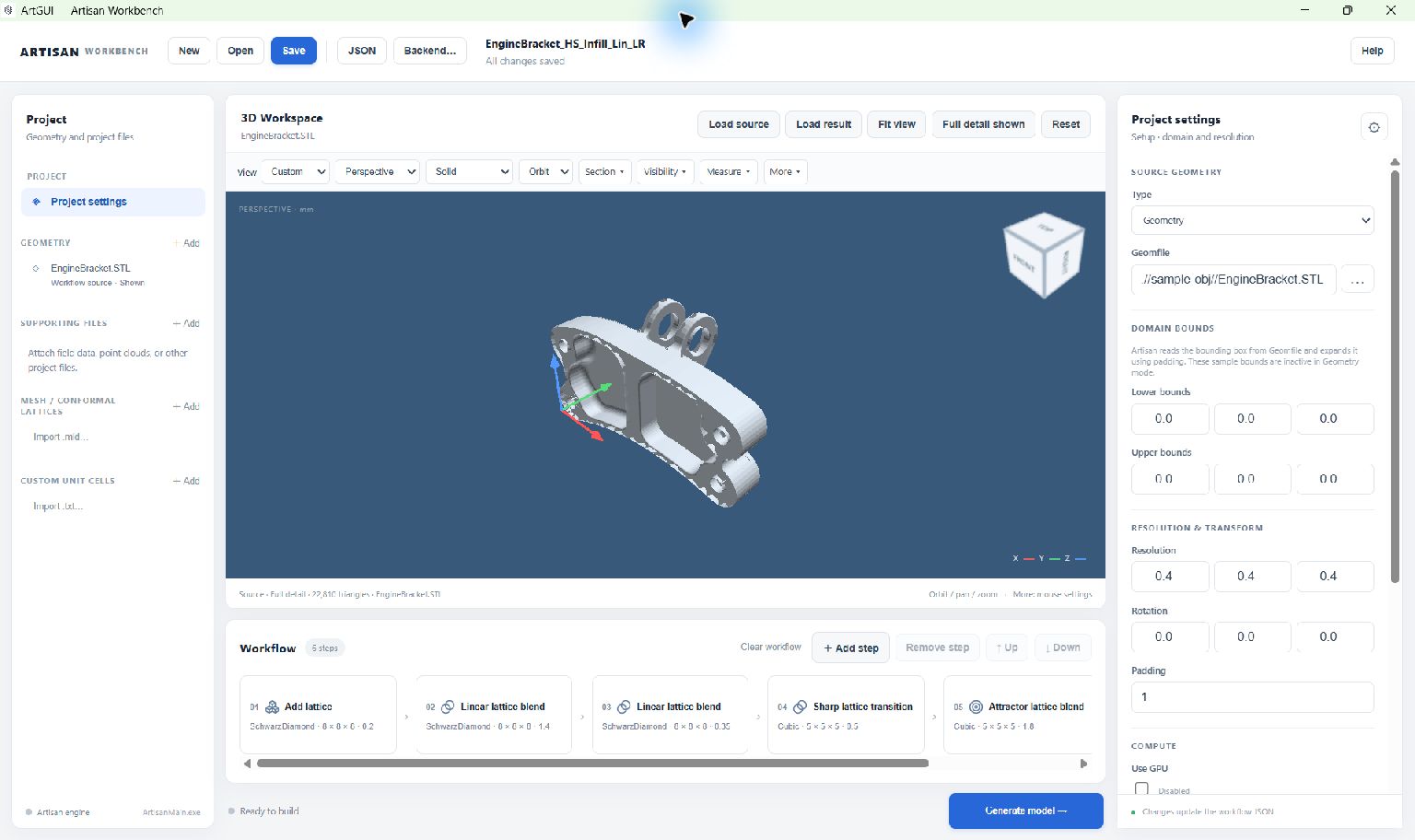
Work from left to right: choose an item, inspect the model or workflow, then edit its properties.#
The main areas#
Area |
Use it to |
|---|---|
Top bar |
Create, open, save or Save as a project; open the JSON editor; choose a backend; open Help. The project name and saved/unsaved status appear here. |
Project |
Select project settings, source and reference geometry, supporting files, point clouds, HDF5 fields, mesh/conformal lattice definitions and custom unit cells. |
3D Workspace |
Load source and result files, navigate around models, control layers, section the display, take measurements and save images. |
Workflow |
Select, insert, remove and reorder the operations that create the model. Scroll horizontally to reach cards outside the visible strip. |
Properties |
Edit the selected item. Its heading changes with your selection. Scroll within this panel to reach parameters below the visible area. |
Status row and run log |
Start or stop generation and inspect the backend’s progress and messages. |
Selection and changes#
Select Project settings to edit the domain, resolution and computation options. Select a workflow card to edit that operation, or a geometry entry to inspect its file and bounds. The gear button at the top of Properties returns to Project settings.
Ordinary property edits update the in-memory workflow when the field change is committed, usually by leaving the field. Choose Save to write the project to disk. The text Changes update the workflow JSON at the bottom of Properties does not mean that every edit is automatically saved to disk.
Lattice-definition forms have an explicit Apply definition action. Apply the definition before selecting a different item; see Define and reuse lattices.
Useful controls#
Control |
Action |
|---|---|
Ctrl+S |
Save the current project. |
Ctrl+Shift+S |
Save as a new project filename or location. |
JSON |
Open the complete workflow for text editing. |
Esc |
Close a modal dialog; the viewer also uses Escape to finish an active measurement interaction. |
+ Add step |
Open the searchable operation picker. Within its search/results, Up/Down selects an operation and Enter adds it. |
Fit view |
Frame the visible model layers. |
Reset |
Return the camera to an isometric view. |
Clean scratch |
Clear files and subfolders inside ViewScratch; cached previews close. See Inspect models in the 3D Workspace before cleaning. |
When generation is running, workflow editing is locked. You can continue to inspect the model in the viewer. See Generate models and read the log for progress and logs.
Language and workspace size#
Use 中文 / English at the top right to switch languages. Your preference is saved locally. Switching preserves the current project, edits, view and running calculation. JSON keywords, file paths and backend logs retain their original text.
Choose Expand above the viewer for more room to inspect a model. Choose Restore layout to return to the panels. Escape also restores the layout when no dialog or other active interaction needs it.
The Resources tab beside Workflow shows memory and CPU use; see Generate models and read the log. Use View field… or the Project panel’s Fields section to inspect an exported HDF5 field; see Inspect models in the 3D Workspace.
Select a geometry, field or point cloud in Project to show that object’s display controls in Properties. Its opacity slider affects only that object; another object’s opacity control is not included in the selected Properties.
The Expand / Collapse control on the Workflow/Resources panel shows or hides its contents. Selecting either tab reopens the panel. This is separate from expanding the 3D Workspace; it preserves the current selection and data. In Chinese, Point clouds → + Add appears as 点云 → + 添加.